For interior designersProposition Studio
AI interior visualization for interior designers.
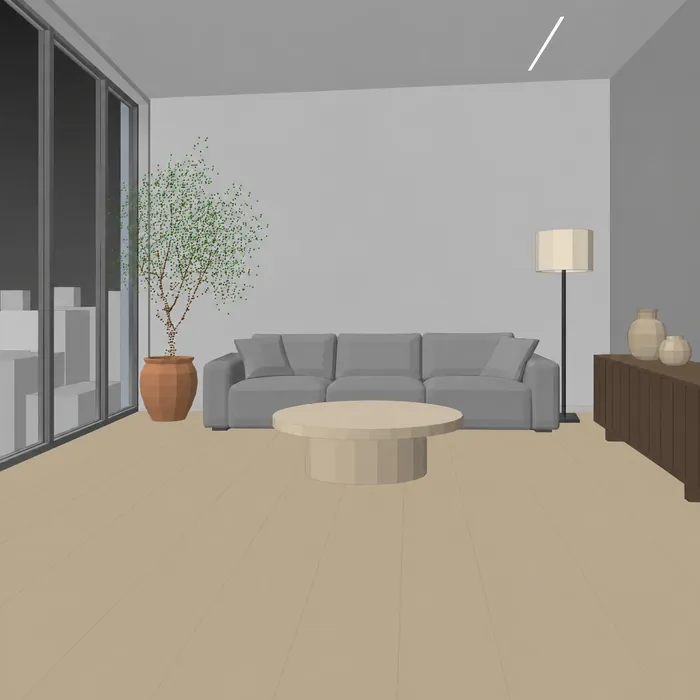
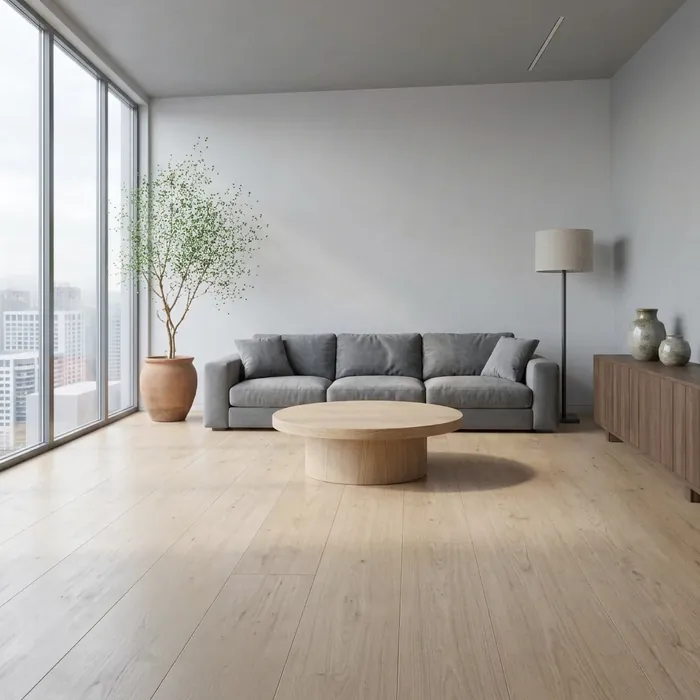
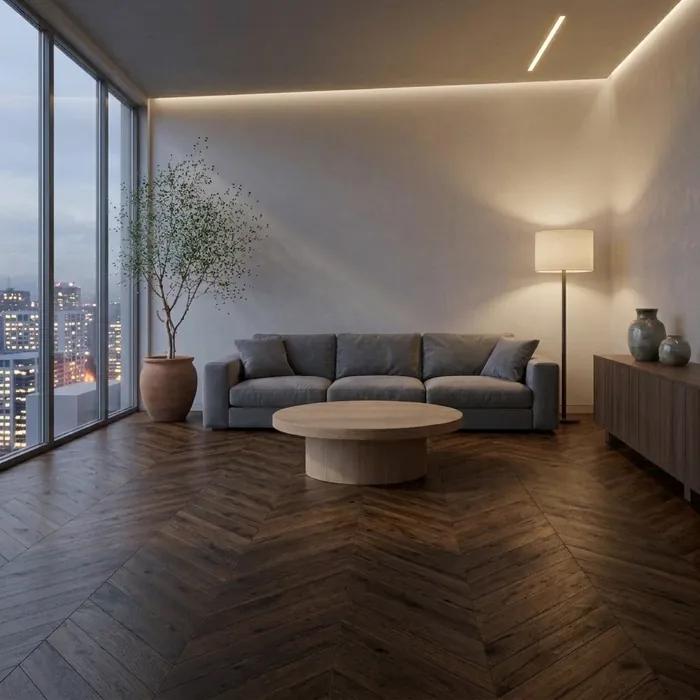
Start from a 3ds Max, SketchUp or Revit view, or a photo from the site. Get a realistic image in the same frame, then show your client the floor, the fabric or the light in a few variants. Materials come from photos of real samples.
01Example
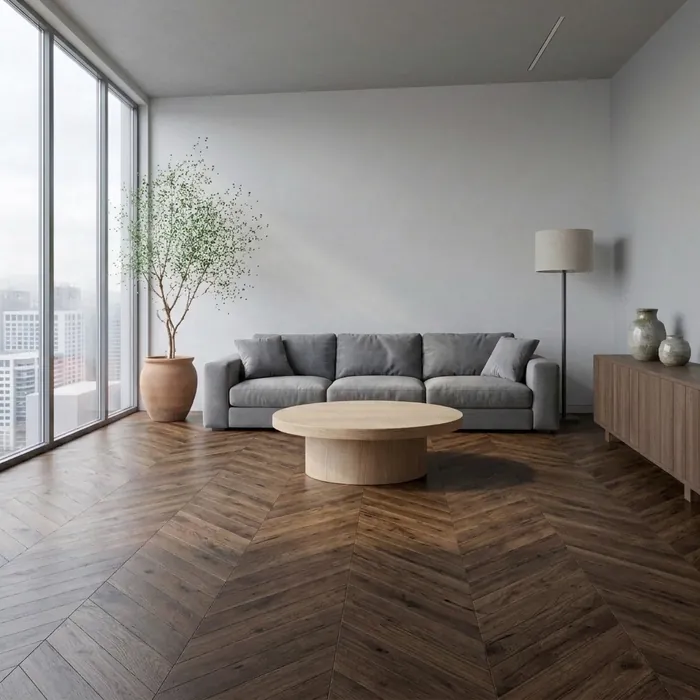
From a viewport to floor variants, in one frame.
The input view was generated for this demo, not taken from a real project. The results come straight from the app.
02How it works
Your view in, client variants out.
- Upload your view.Any screenshot from 3ds Max, SketchUp or Revit works, and so does a photo from the site. The app works on the image, so you need no export or plugin.
- Get a realistic image in the same frame.With the camera locked, the framing, the furniture and the proportions stay as they are in your view.
- Mark a surface and attach the real sample.Paint over the floor, a wall or the sofa and attach a photo of the material: a floorboard, a fabric swatch, a stone slab. The reference is pinned to that area.
- Make variants and compare them.Every version stays in the project with what it was made from. Go back to any step and try another direction.
03What it does not do
The limits, honestly.
- It does not read your model.It works on the image, so it knows nothing about dimensions, layers or materials in the model. It knows as much as the screenshot shows.
- A sample guides the material, but it is not an exact color match.Check the tone and the pattern scale against the physical sample before your client signs off.
- It does not replace a render for documentation.It is for talking about direction with your client, quickly and in several variants.
Which programs does it work with?
Any program you can take a screenshot from: 3ds Max, SketchUp, Revit and others. You upload the image, not the model file, so you need no plugin or export.
Can I use a real material sample?
Yes. Mark the surface and attach a photo of the sample as a reference. In the example above, the floor became dark oak parquet from a photo of a real flooring sample.
Does the camera stay the same?
Yes. With the camera locked, the framing stays as in your view, so you can compare variants one to one. It is still a generative model, so check each version against the source.
Can I start from a site photo instead of a model?
Yes. A photo of the existing room works the same way: mark what should change and describe it.
How much does it cost?
You start with 3 free credits, no card required. One generation costs 1 credit. After that you buy a one-time credit pack when you need it. There is no subscription.
StartAccess
Try it on your next project.
Upload a view from a current project and make a first variant. You start with 3 free credits, no card required.