Renovation previewProposition Studio
See your renovation before it starts.
Upload a photo of your room. Mark the floor, a wall, the kitchen fronts or the worktop, say what finish you want, and see it in your own room before you order materials or start the work.
01Example 1
One photo, a renovation in four steps.
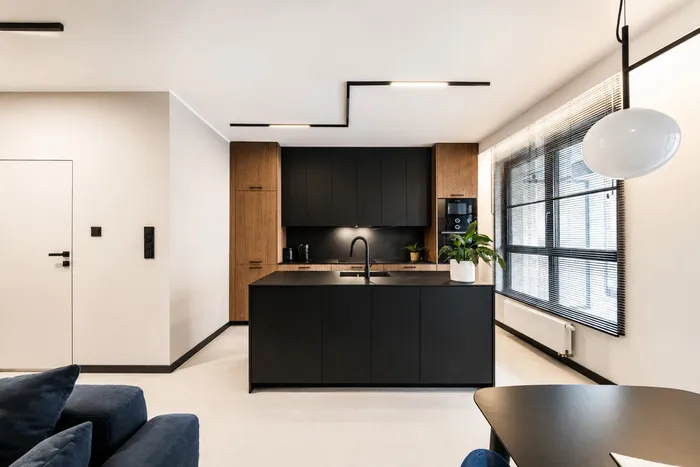
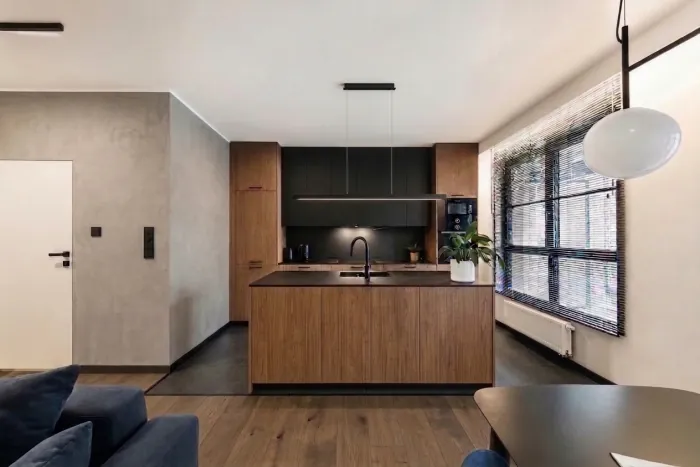
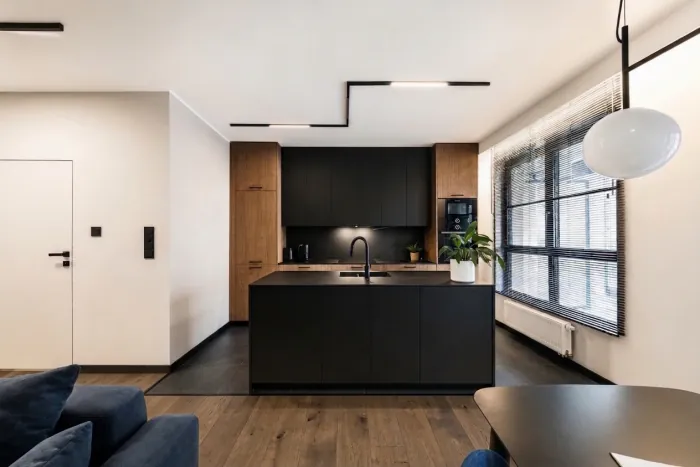
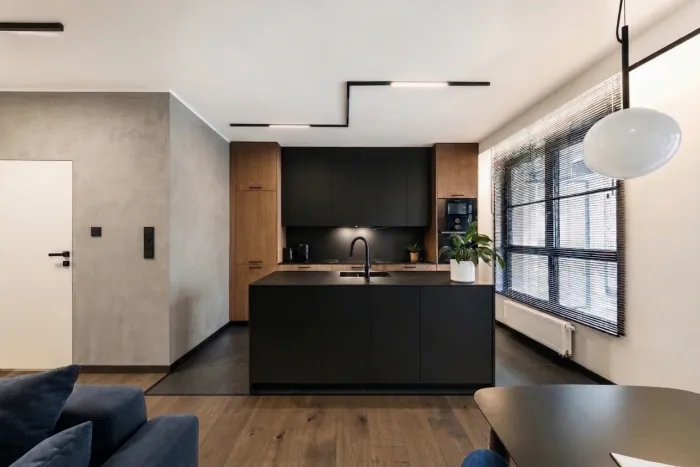
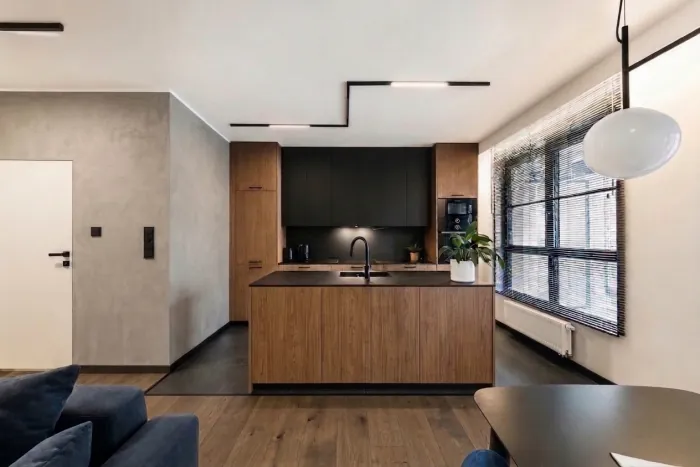
A photo of a real apartment, renovated in the app one step at a time: the floor, a wall, the island fronts, then the lamp. Each step is an edit of the previous version, with its own marked area and one instruction. The floor took two of these edits: first the whole floor, with tiles in the kitchen, then the living area again, in oak. The results come straight from the app.
02Example 2
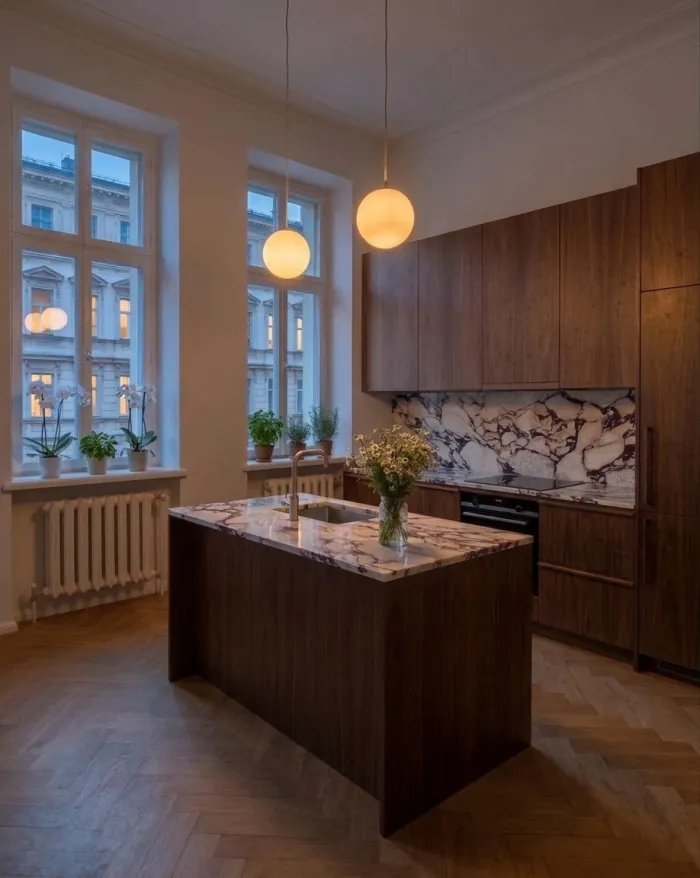
An old kitchen: renovation, new stone, evening.
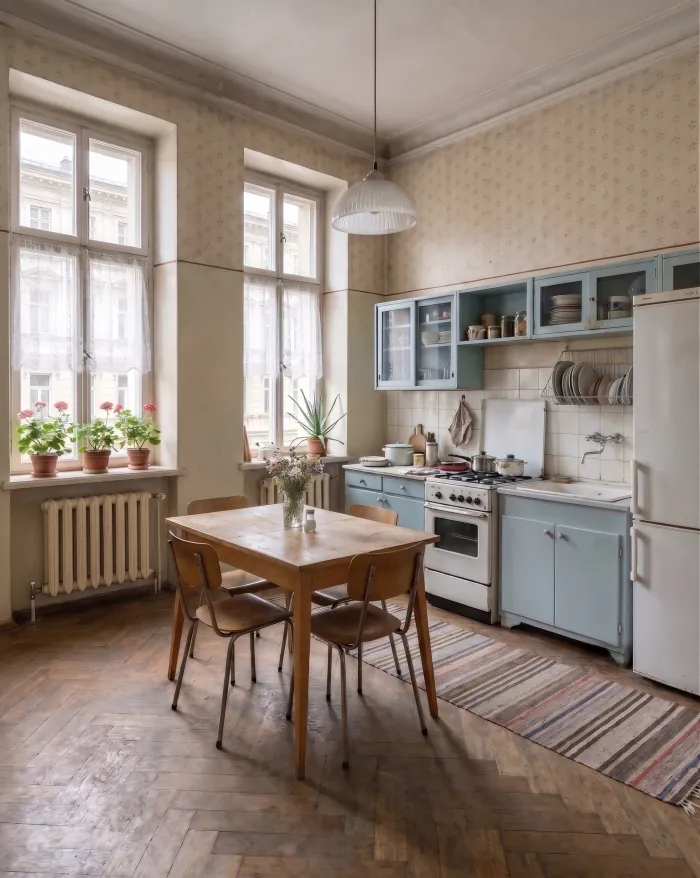
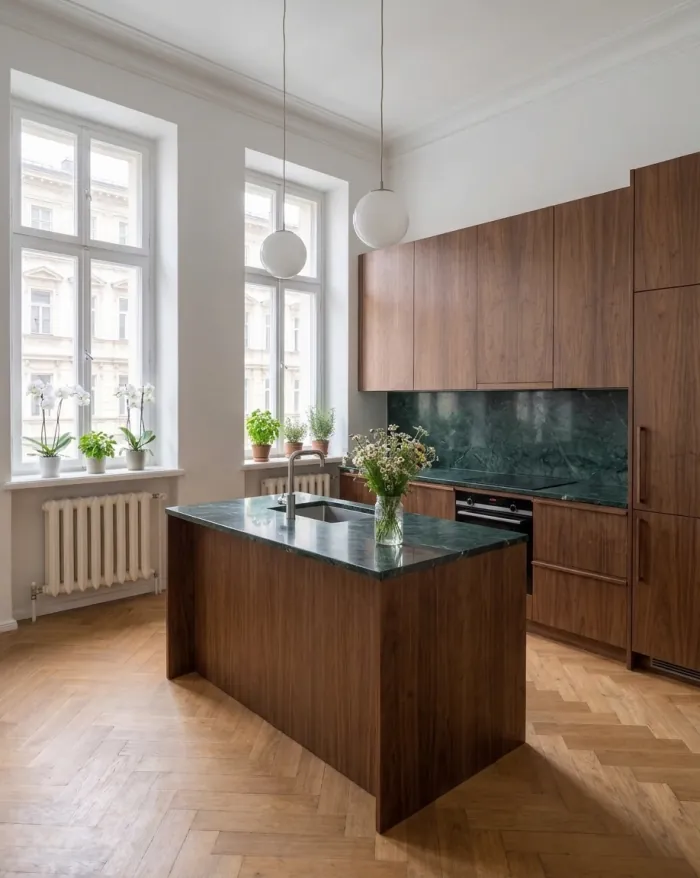
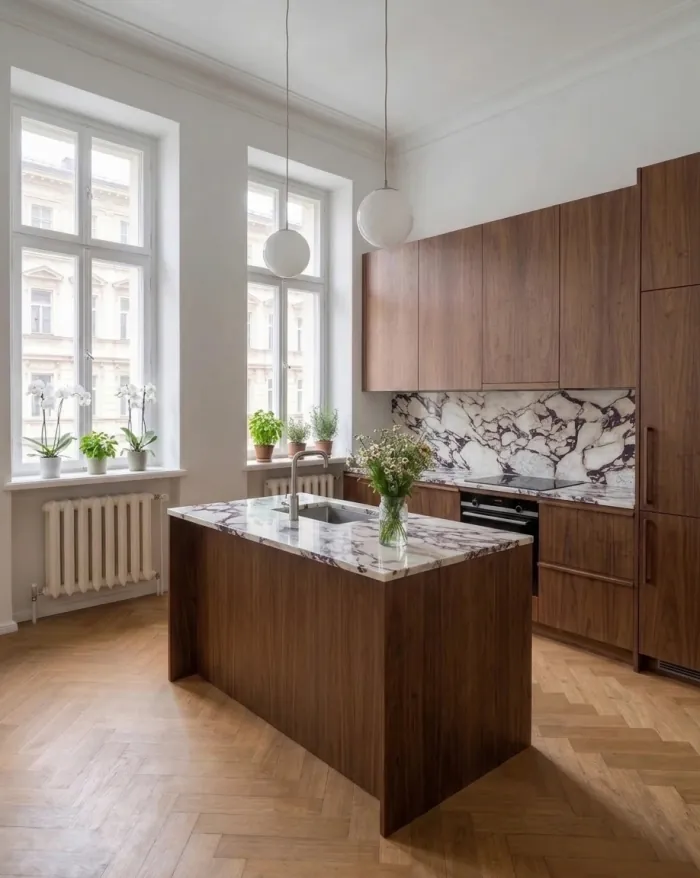
The before image of this 1960s tenement kitchen was generated for this example; it is not a photo of a real flat. The three results come straight from the app, from the same camera.
03How it works
Mark the surface, name the finish.
- Upload a photo of your room.A photo from your phone is enough. JPG, PNG or WebP, up to 10 MB.
- Paint over the surface.The floor, a wall, the cabinet fronts or the worktop. The marked area is the only place you ask the app to change.
- Name the finish, or attach a sample.Write it in one sentence, like warm grey microcement. Or attach a photo of a real material, such as a stone slab, as a reference.
- Generate and compare.One generation costs 1 credit. Put the result next to your photo, try another finish and keep the one you like.
04What it does not do
The limits, honestly.
- Only what you mark changes.A surface you do not mark keeps its finish, so mark every part you want to change, like the wall and its corner. Check the edges after each step.
- The image can get darker with each step.After the four apartment steps, the image is about 8% darker than the photo. Some tries came out noticeably darker in a single step, and we generated those steps again. That is why the photo and the result sit side by side here, not on a slider. Compare each result with your original before you decide.
- A sample guides the material, but it is not an exact color match.Check the tone and the size of the pattern or veins against the real sample, in daylight, before you order.
Can I see a new wall finish in a photo of my room?
Yes. Paint over the wall and name the finish in one sentence. In the example above, the large wall became warm grey microcement, while the door, the switches and the skirting stayed.
Can I try new kitchen fronts or a new worktop?
Yes. Mark the fronts or the worktop and describe the new finish, or attach a photo of a real sample. Above, the island fronts became wood to match the tall units, and a marble worktop came from a photo of a real slab.
Can I show the whole renovation at once?
Yes. Describe the whole renovation in one go, as in the tenement kitchen above, or build it one step at a time, each step on the previous version, as in the apartment. Step by step gives you more control, but each step can darken the image. Either way, check every detail against your photo.
Will the color match the real material exactly?
No. A photo of a real sample guides the tone and the pattern, but it is not an exact color match, and a result can come out a few percent darker. Use the result to choose a direction, then check the real sample.
How much does it cost?
You start with 3 free credits, no card required. One generation costs 1 credit. After that you buy a one-time credit pack when you need it. There is no subscription.
StartAccess
Try it on your own room.
Upload a photo of the room you want to renovate and try one finish. You start with 3 free credits, no card required.